


vue开发小应用:简易记事本功能 - Web前端
作者:98wpeu发布时间:2026-08-31分类:网页前端技术浏览:116
导读:vue开发小应用:简易记事本功能。我们可以先看下效果图:功能:输入任务的时候,按回车,下面直接登记任务。我们可以选择删除或者清空,然后重新进行登记。废话不多说,直接上DemO:&l...
vue开发小应用:简易记事本功能。我们可以先看下效果图:
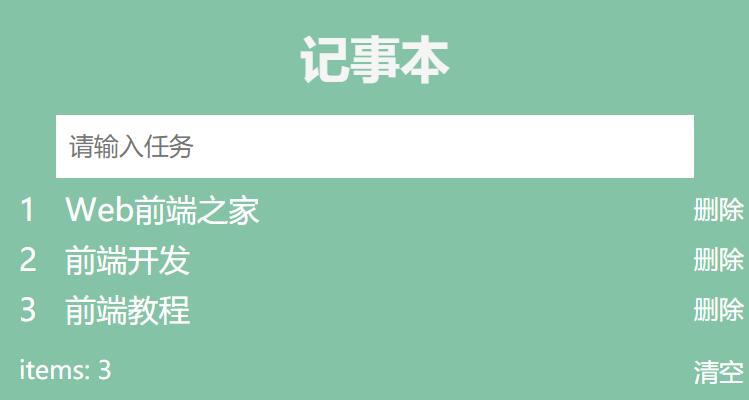
功能:
输入任务的时候,按回车,下面直接登记任务。我们可以选择删除或者清空,然后重新进行登记。
废话不多说,直接上DemO:
<!DOCtype html>
<HTML lang="en">

<head>
    <meta charset="UTF-8">
    <meta http-eqUIv="X-UA-Compatible" content="ie=Edge">
    <meta name="vIEwport" content="width=device-width, initial-scale=1.0">
    <title>Vue开发小应用:简易记事本功能 | Web前端之家https://www.jiangweishan.com/</title>
    <style>
        * {
            margin: 0;
            padding: 0;
        }

        #todoAPP {
            width: 600px;
            background-color: rgba(19, 161, 114, 0.63);
            font-family: sans-serif;
        }

        .header>h1 {
            padding: 20px 0;
            text-align: center;
            font-size: 40px;
            color: whitesmoke;
        }


        .newTask {
            display: block;
            width: 500px;
            height: 50px;
            line-height: 50px;
            padding-left: 10px;
            margin: 0 auto;
            font-size: 20px;
            outline: none;
            border: none;
        }

        .todolist li {
            height: 30px;
            line-height: 30px;
            padding-left: 15px;
            margin: 10px 0;
            font-size: 25px;
            color: white;
        }

        .todolist .item {
            margin-left: 15px;
        }

        .destroy,
        .clear {
            width: 50px;
            height: 30px;
            float: right;
            color: white;
            background-color: transparent;
            border: none;
            font-size: 20px;
        }

        .footer {
            width: 600px;
            height: 30px;
            padding: 10px 0;
            vertical-align: middle;
        }


        .footer p {
            display: inline-block;
            padding-left: 15px;
            color: white;
            font-size: 20px;
        }
    </style>
</head>

<body>
    <section id="todoapp">
        <header class="header">
            <h1>记事本</h1>
            <input type="text" v-model="newItem" class="newTask" placeholder="请输入任务" @keyup.enter="add">
        </header>
        <section>
            <ul class="todolist">
                <li v-for="(item, index) in list">
                    <div>
                        <span>{{ index + 1 }}</span>
                        <label class="item">{{ item }}</label>
                        <button class="destroy" @click="del(index)">删除</button>
                    </div>
                </li>
            </ul>
        </section>
        <footer class="footer">
            <p class="count">
                items: {{ list.length }}
            </p>
            <button class="clear" @click="clear" v-show="list.length != 0">清空</button>
        </footer>
    </section>
    <script src="https://CDN.JSdelivr.net/npm/vue@2.6.14/dist/vue.js"></script>
    <script>
        const App = new VUE({
            el: "#todoapp",
            data: {
                list: [],
                newItem: ""
            },
            methods: {
                add() {
                    if (this.newItem == "") {
                        return;
                    }
                    else {
                        if (!this.list.includes(this.newItem)) {
                            this.list.push(this.newItem);
                            this.newItem = "";
                        }
                        else {
                            alert("请勿添加重复事件!");
                            this.newItem = "";
                        }
                    }
                },
                del(index) {
                    this.list.splice(index, 1);
                },
                clear() {
                    this.list = [];
                }
            }
        })
    </script>
</body>

</html>
大家试试吧!
相关推荐
- jquery改变disabled的boolean状态的三种方法 - Web前端
- jquery限定文本框只能输入数字即整数和小数 - Web前端
- jquery放大镜效果超漂亮噢 - Web前端
- jquery和javascript中如何将一元素的内容赋给另一元素 - Web前端
- jquery实现图片滚动效果的简单实例 - Web前端
- 3分钟写出来的Jquery版checkbox全选反选功能 - Web前端
- 查找iframe里元素的方法可传参 - Web前端
- jquery等宽输出文字插件使用介绍 - Web前端
- jquery获取div距离窗口和父级dv的距离示例 - Web前端
- 解决jquery1.9不支持browser对象的问题 - Web前端
- 网页前端技术排行
-
- 1[Web前端]用javascript实现默认图片替代未显示的图片 - Web前端
- 2分析Iconfont-阿里巴巴矢量常用图标库 - Web前端
- 3jQuery实例教程:制作网页中可折叠的面板 - Web前端
- 4【第六章】Foundation之按钮和下拉功能 - Web前端
- 5基于jquery的滚动条滚动固定div(附演示下载) - Web前端
- 6jQuery编写widget的一些技巧分享 - Web前端
- 7分享精心挑选的12款优秀jQuery Ajax分页插件和教程 - Web前端
- 8jQuery实现鼠标移到元素上动态提示消息框效果 - Web前端
- 9在Mac/PC上远程调试iPhone/iPad上的网页 - Web前端
- 最近发表
-
- WordPress随机显示特色图片插件:Random Post Thumbnails
- KeePass实现Chrome浏览器自动填充密码方法一
- LNMP一键包nginx 301强制跳转到https教程
- KeePass实现Chrome浏览器自动填充密码方法二
- #建站# 免费的VPS管理软件Xshell8/Xftp8中文版下载
- 使用Xshell 8连接VPS教程_电脑登录vps的方法
- WordPress评论界面添加烟花????效果
- 不同浏览器书签同步方案:坚果云+Floccus_详细使用教程
- iOS端KeePassXC客户端APP:Strongbox Password Safe
- 给WordPress评论中的Gravatar头像图片添加ALT属性